Billing management happens through the Stripe Customer Portal -- a secure, familiar interface.
Getting to the Billing Portal
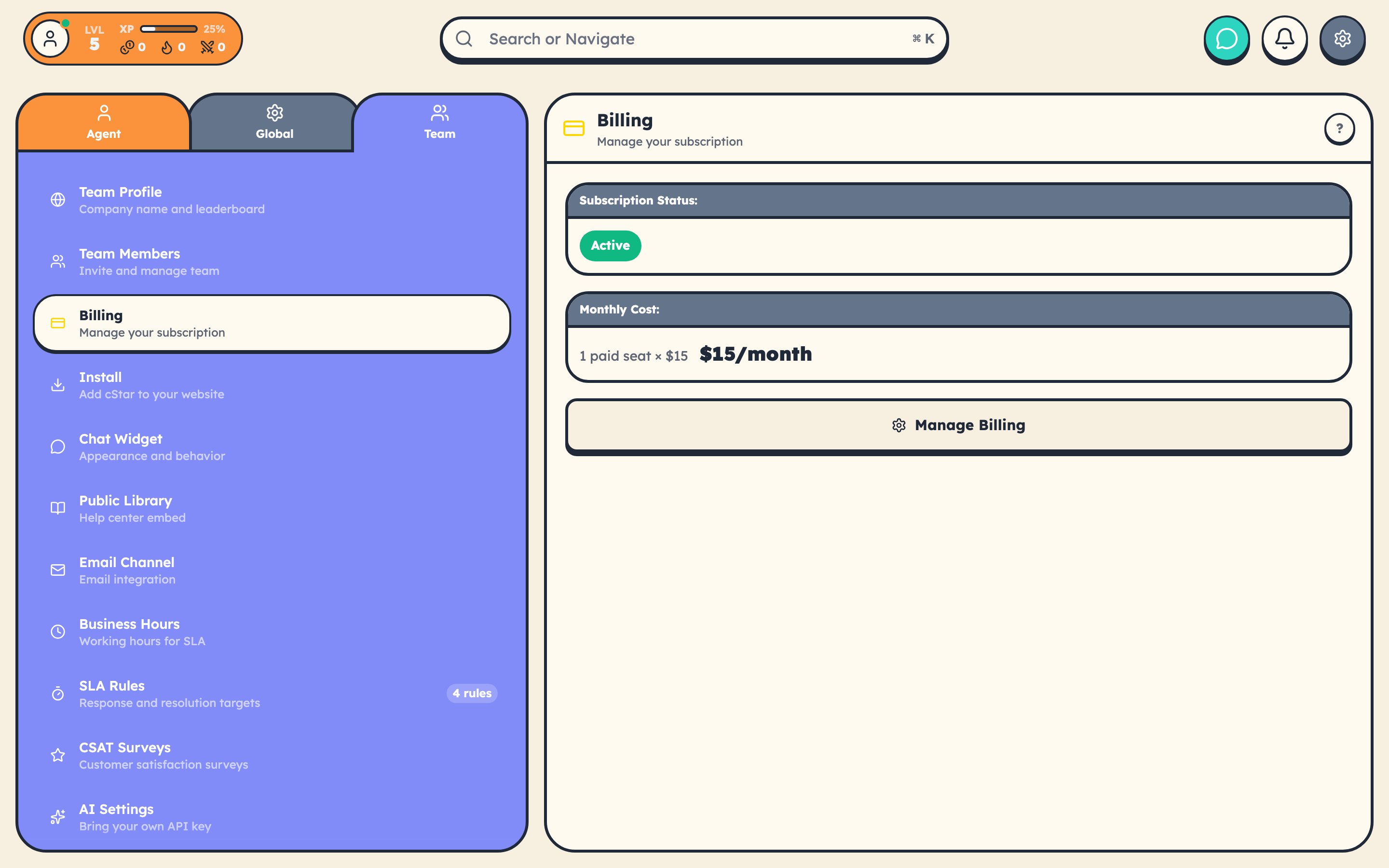
- Open Settings
- Go to the Billing section
- Click Manage Billing
- Stripe opens in a new tab
From there you can:
- Update your payment method
- View invoices and payment history
- Download PDF receipts
- Update billing information
- Cancel your subscription
Updating Your Payment Method
In the Stripe portal, click Payment methods, add a new card or update the existing one, and set it as default. Your next invoice uses the updated method.
Viewing Invoices
All invoices live in the Stripe portal:
- Paid invoices with downloadable PDF receipts
- Upcoming invoice preview showing your next bill
- Full payment history
Need an invoice for accounting? They are all there, professionally formatted.
How Seat Changes Affect Billing
cStar automatically adjusts your billing when your team size changes:
| Action | Effect |
|---|---|
| Add a team member | Prorated charge on your next invoice |
| Remove a team member | Credit applied to your next invoice |
Stripe handles the proration math. You only pay for what you use.
Remember: the first 3 Spectator seats are free. Adding a 4th Spectator starts billing for that seat at $15/month.
Example
You are on a $45/month plan (3 paid seats). On day 15 of your billing cycle, you add a 4th team member. You will be charged approximately $7.50 for the remaining half-month, and your next full month is $60.
Billing Date
Your billing date is the anniversary of when you first subscribed. Adding or removing team members does not change this date.
Need Help
If something looks wrong on your invoice, reach out. We will make it right.
Related Articles:
- Billing Overview
- Adding a Payment Method
- Canceling Your Subscription